
Introduction
If you're a DAO member and your governance tokens aren't appearing in your Phantom wallet, don’t worry! This is a common issue that can often be resolved with a few simple steps. Below, we’ll guide you through the process to ensure your tokens are visible and accessible.
Why Tokens Might Not Show Up
Governance tokens may not display due to several reasons, including incorrect network selection, unverified token contracts, or wallet synchronization issues. Let’s walk through the steps to fix this.
Steps to Resolve the Issue

Step 1: Verify Network Selection
Open your Phantom wallet and click on the token list settings
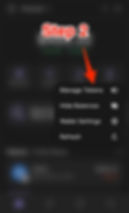
Step 2: Click on Manage Tokens
This is where you override the tokens display list management
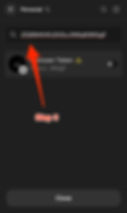
Step 3: Search for our Token
Insert our Token address in the search bar: 3wmsJkKWLdFT4tF4rG8zUZQ8M4hKUDtDuJW8q6i9KbgF
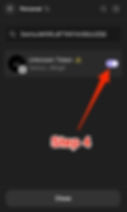
Step 4: Enable the Token
Toggle the switch next to the token to enable it in your wallet, as shown in the screenshot.

Step 5: Close and Reopen the Wallet
After enabling the token, close the token details window by clicking the "Close" button.
Refresh your wallet and reopen the app or browser extension to ensure the changes take effect.
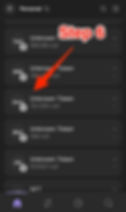
Step 6: Check Token Balance
Return to the "Tokens" section and verify that the governance token now appears with the correct balance.
If the balance is still "null" or incorrect, ensure the token has been properly transferred to your wallet address.
Conclusion
By following these steps, you should be able to see your governance tokens in your Phantom wallet. If issues continue, it might be worth consulting with your DAO administrators or the Phantom support team. Happy governing!